macOS 配置
全新 Mac 从零开始的完整初始化流程,涵盖 Homebrew、Fish Shell、Ghostty 终端等开发工具链配置。
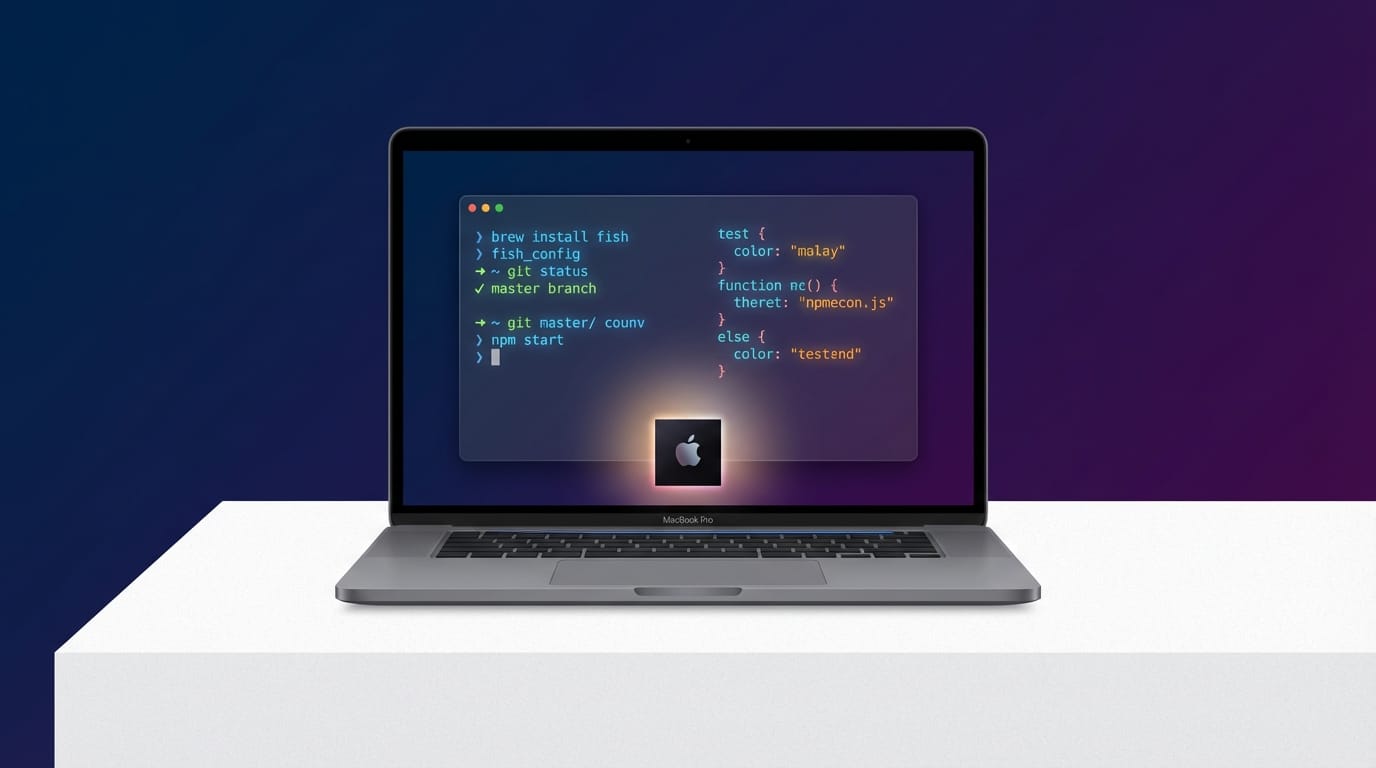
全新 Mac 从零开始的完整初始化流程。基于 Apple Silicon,所有路径以 /opt/homebrew 为准。
1. 前置准备
1.1 Xcode Command Line Tools
Homebrew 和大部分开发工具的前置依赖,必须先装:
xcode-select --install
弹窗确认后等安装完成,耗时约 5-10 分钟。
1.2 Homebrew
/bin/bash -c "$(curl -fsSL https://raw.githubusercontent.com/Homebrew/install/HEAD/install.sh)"
安装完成后按提示执行(Apple Silicon 路径):
eval "$(/opt/homebrew/bin/brew shellenv)"
验证安装:
brew doctor
2. 终端 — Ghostty
2.1 安装
brew install --cask ghostty
2.2 配置
配置文件路径:~/.config/ghostty/config
# 字体
font-size = 14
font-family = Monaco
# 中文字符回退到 Noto Sans SC,避免 Monaco 中文渲染问题
font-codepoint-map = U+4E00-U+9FFF=Noto Sans SC

# 主题与背景
theme = Dracula+
background = #000000
background-opacity = 0.75
background-blur-radius = 70
Noto Sans SC 需要提前安装:brew install font-noto-sans-cjk-sc,或直接从 Google Fonts 下载。3. Shell — Fish + Fisher
3.1 安装 Fish 并设为默认 Shell
brew install fish

# 将 fish 加入系统可用 shell 列表
echo /opt/homebrew/bin/fish | sudo tee -a /etc/shells

# 设为默认 shell
chsh -s /opt/homebrew/bin/fish
重新打开终端即生效。
3.2 安装 Fisher
Fisher 是轻量级 Fish 插件管理器,纯函数式,不侵入 config.fish:
curl -sL https://raw.githubusercontent.com/jorgebucaran/fisher/main/functions/fisher.fish | source && fisher install jorgebucaran/fisher
3.3 安装插件与主题
# z — 目录跳转,根据访问频率模糊匹配
fisher install jethrokuan/z
# Hydro — 极简提示符主题,异步 Git 状态,Fisher 作者出品
fisher install jorgebucaran/hydro
Hydro 安装后即可使用,无需配置向导。通过 set --universal 自定义:
# 可选:自定义提示符号(默认 ❱)
set -U hydro_symbol_prompt ❯
# 可选:多行模式(提示符换行显示)
set -U hydro_multiline true
# 可选:自动 fetch 远程分支状态
set -U hydro_fetch true
4. 开发环境
4.1 mise — 统一版本管理
mise 统一管理 Ruby 和 Node.js 版本,替代 rbenv + fnm,一个工具搞定:
brew install mise

# 激活 mise(永久配置见第 5 节 config.fish)
mise activate fish | source
Ruby
mise use --global ruby@3.3

# 验证
ruby --version    # → ruby 3.3.x

# 常用 gem
gem install cocoapods fastlane
Node.js
mise use --global node@24

# 验证
node --version    # → v24.x.x

# 常用全局包
npm i -g npm-check-updates wrangler
注意:如果 Homebrew 自带了 node(常见于 mongosh 等包的依赖),它会在 PATH 中排在 mise 前面导致版本不对。解决方法:
项目级版本锁定
在项目根目录创建 .mise.toml 即可指定该项目的语言版本:
[tools]
node = "20"
ruby = "3.2"
进入目录自动切换,无需手动操作。
4.2 Python — uv
uv 同时管理 Python 版本和包,不需要再用 mise 管 Python:
curl -LsSf https://astral.sh/uv/install.sh | sh
# 安装 Python
uv python install 3.12

# 验证
python3 --version    # → Python 3.12.x

# 项目初始化(自动创建 venv + pyproject.toml)
uv init my-project
cd my-project
uv add requests  # 添加依赖
4.3 Bun
curl -fsSL https://bun.sh/install | bash
验证:
bun --version # → 1.x.x
5. Fish 完整配置
~/.config/fish/config.fish:
set -g fish_greeting "All to be nice"

# mise — Ruby, Node.js 版本管理
mise activate fish | source

# uv — Python
fish_add_path $HOME/.local/bin

# Bun
set -gx BUN_INSTALL "$HOME/.bun"
fish_add_path $BUN_INSTALL/bin

# Homebrew
eval (/opt/homebrew/bin/brew shellenv)

if status is-interactive
    alias python python3
    alias pip pip3
    alias claude 'claude --dangerously-skip-permissions'
end

# ZMX / SSH session 终端标题
function fish_title
    set -l prefix ""
    if set -q ZMX_SESSION
        set prefix "[$ZMX_SESSION] "
    else if set -q SSH_CONNECTION
        set prefix "["(hostname -s)"] "
    end
    echo $prefix(string join " — " (string match -r '.+' $argv) (prompt_pwd))
end
配置要点:mise 统一管理 Ruby/Node.js,PATH 配置简洁fish_add_path自动去重、幂等fish_title在 ZMX session 和 SSH 连接时显示会话标识
写入后重新加载配置:
source ~/.config/fish/config.fish
6. Git + SSH
6.1 Git 全局配置
git config --global user.name "你的名字"
git config --global user.email "your@email.com"
git config --global init.defaultBranch main
git config --global pull.rebase true
6.2 SSH 密钥
# 生成 Ed25519 密钥(比 RSA 更短更安全)
ssh-keygen -t ed25519 -C "your@email.com"
一路回车使用默认路径。然后添加到 SSH Agent:
eval (ssh-agent -c)
ssh-add ~/.ssh/id_ed25519
复制公钥:
pbcopy < ~/.ssh/id_ed25519.pub
分别粘贴到:
- GitHub → Settings → SSH and GPG keys
- GitLab → Preferences → SSH Keys
6.3 多平台 SSH 配置
如果同时使用 GitHub 和自建 GitLab,配置 ~/.ssh/config:
Host github.com
    HostName github.com
    User git
    IdentityFile ~/.ssh/id_ed25519

Host git.socloud.ltd
    HostName git.socloud.ltd
    User git
    IdentityFile ~/.ssh/id_ed25519
7. CLI 工具
一行装完常用命令行工具:
brew install git gh jq ripgrep fd bat eza wget httpie
| 工具 | 用途 | 替代 |
|---|---|---|
git |
Homebrew 版,比 Xcode 自带的更新 | — |
gh |
GitHub CLI,PR / Issue 操作 | — |
jq |
JSON 处理 | — |
ripgrep |
极速文本搜索 | grep |
fd |
极速文件查找 | find |
bat |
语法高亮的 cat | cat |
eza |
现代化 ls,支持 Git 状态 | ls |
wget |
下载工具 | curl |
httpie |
人性化 HTTP 客户端 | curl |
8. GUI 应用
brew install --cask \
    obsidian \
    raycast \
    orbstack \
    arc \
    1password \
    telegram \
    maccy
| 应用 | 用途 |
|---|---|
obsidian |
知识管理,Markdown 笔记 |
raycast |
快速启动器,替代 Spotlight |
orbstack |
容器管理,替代 Docker Desktop |
arc |
浏览器,基于 Chromium |
1password |
密码管理器 |
telegram |
即时通讯 |
maccy |
剪贴板历史管理 |
Ghostty 已在第 2 节安装。
9. AI 编程助手
终端原生 AI 编程工具,支持自然语言交互、代码生成和项目级操作。
9.1 Claude Code (Anthropic)
官方推荐安装方式(来源: https://docs.anthropic.com/en/docs/claude-code/installation)
# macOS 官方安装脚本
brew install claude-code

# 或使用官方安装脚本
curl -fsSL https://claude.ai/install | sh
使用:在项目目录运行 claude,首次使用需登录 Anthropic 账号。
详细文档: https://docs.anthropic.com/en/docs/claude-code
9.2 Codex (OpenAI)
# 通过 npm 安装
npm install -g @openai/codex

# 或使用 npx 免安装运行
npx @openai/codex
使用:在项目目录运行 codex,首次使用需登录 OpenAI 账号。
9.3 Gemini CLI (Google)
# 通过 npm 安装
npm install -g @google/gemini-cli

# 或使用 npx 免安装运行
npx @google/gemini-cli
使用:在项目目录运行 gemini,首次使用需登录 Google 账号。
9.4 OpenCode
# Homebrew 安装 (推荐)
brew install anomalyco/tap/opencode

# 或通用安装脚本
curl -fsSL https://opencode.ai/install | bash
详细配置参考:OpenCode 配置
建议至少安装 2 款工具互为备份,避免单点故障。Claude Code 和 OpenCode 是社区反馈较好的组合。
10. macOS 系统偏好
通过 defaults write 命令批量配置,复制粘贴即可:
# ═══ Dock ═══
defaults write com.apple.dock autohide -bool true           # 自动隐藏 Dock
defaults write com.apple.dock autohide-delay -float 0        # 去除隐藏延迟
defaults write com.apple.dock tilesize -int 48               # 图标大小
defaults write com.apple.dock show-recents -bool false       # 隐藏最近使用的应用

# ═══ 键盘 ═══
defaults write NSGlobalDomain KeyRepeat -int 2               # 按键重复速度(最快)
defaults write NSGlobalDomain InitialKeyRepeat -int 15       # 按键重复前延迟(最短)
defaults write NSGlobalDomain ApplePressAndHoldEnabled -bool false  # 关闭长按弹出重音字符,改为连续输入

# ═══ Finder ═══
defaults write com.apple.finder AppleShowAllExtensions -bool true   # 显示所有文件扩展名
defaults write com.apple.finder ShowPathbar -bool true              # 显示路径栏
defaults write com.apple.finder _FXShowPosixPathInTitle -bool true  # 标题栏显示完整路径

# ═══ Spotlight ═══
# 已用 Raycast 替代,关闭 Spotlight 索引释放资源
sudo mdutil -a -i off

# ═══ 截图 ═══
mkdir -p ~/Pictures/Screenshots
defaults write com.apple.screencapture location ~/Pictures/Screenshots  # 截图保存位置

# 重启相关服务使设置生效
killall Dock Finder
键盘设置中 ApplePressAndHoldEnabled 对开发者几乎必开——关掉后长按字母键会连续输入而不是弹出变音符选择。